
theme:fordsonfel:userguide:section3
Table des matières

FordsonFEL: An advanced bootstrap theme
Preset adaptation
Access: Site admin/appearance/themes/FordsonFEL/Preset adaptation
This part presents two elements:
- General content display settings: The chosen options let you customise how content is displayed and enable additional features for fordson_fel.
- Course display options: These options let you customise how courses will be displayed on the standard Moodle front page, as well as customise course categories. If you force arrival on the dashboard because you use the "Enhanced My Moodle" (local_my) component, these settings have no effect.
General content display settings
- Show the login form: To display the login form on the Moodle front page when logged out, and only if you have not forced arrival on the login page.
- Show additional block regions on the site front page: To manage block regions at the top of the standard front page of the theme. Useful only if you do not use the "Enhanced My Moodle" (local_my) component or if you want to mix a front page/my page strategy. Our experience shows that this choice can be a source of confusion for audiences. (ergonomics/flow)
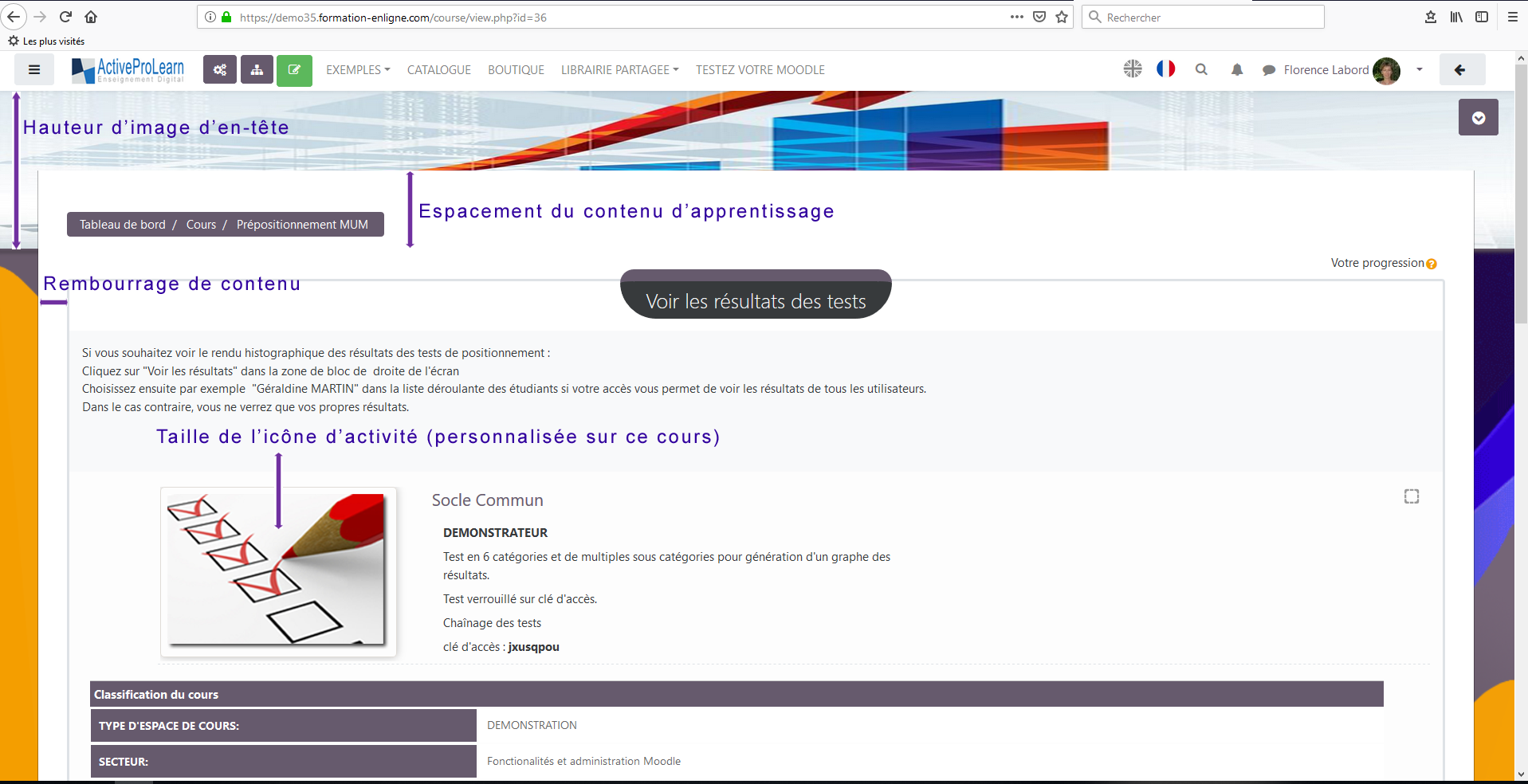
- Learning content spacing: 125 px by default. To manage where the course content starts relative to the header illustration, if you chose header image as background in the Presets (in the layouts settings section).
- Header image height: 200px by default. Controls the height of the course illustration image placed in the header, if you chose header image as background in the Presets (in the layouts settings section).
- Content padding: Sets right and left margins for the content. The higher the value, the narrower the space the content is presented in.
- Column block width: Manages the width of the column block (to be identified). Default 200px.
- Activity icon size: Size of Moodle icons. 32px by default. Note that on Moodle sites hosted by us, custom activity and resource illustrations are possible.
Course display options
- My courses menu sorted by last access on the front page: To display courses by last access on the standard Moodle front page. Useful only if you do not use the "Enhanced My Moodle" (local_my) component.
Note that on Moodle sites hosted by us, truncations are handled automatically, and courses in “categories” view use a harmonised display that shows, as on the dashboard, the completion on the completion “donut”.
The numbered options are only useful if you do not use the customised local my dashboard, which handles these elements:
- Truncate course name: Course title length beyond which truncation applies. 256 characters by default.
- Course tooltip title: No by default. If course title truncation is used, this function can be used and will display the full course title in a tooltip. Check this box to enable this option.
- Truncate course summary: Enter a number to truncate the summary. This number represents the characters that will be displayed. Default: 300 characters.
- Height: Controls the height of the course title on the front page.
- Category display icons: When this box is checked, course categories are displayed as icons.
- Category icon: Default folder, choice possible from a dropdown list.
Example:
- Learning content spacing (learningcontentpadding from the top of the screen): 150px
- header image height (headerimagepadding from the top of the screen): 200px
- Content padding: 2rem
- Activity icon size: here custom illustrations (APL hosted Moodle).
Credits
- Valéry Frémaux (valery@activeprolearn.com)- Development and tests
- Florence Labord (florence@activeprolearn.com): Documentation and functional qualification
Back to the user guide - Theme index - Back to the plugins index - Back to the catalogue
theme/fordsonfel/userguide/section3.txt · Dernière modification : de 127.0.0.1