
mod:scheduler:userguide

Appointment module - Scheduler: User guide
Activity settings
General
- Name: Name of your choice
- Description: Optional description.
Options
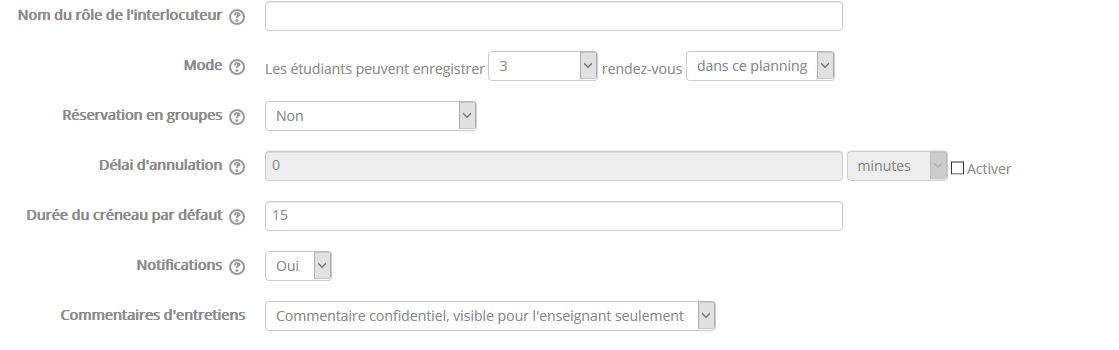
- Name of the contact person's role: Name of your choice; this is the person who assists students by default. It is not necessarily a “teacher”.
- Mode: Choice of the appointment mode:
You can choose different appointment booking modes.
- “n appointments”: The student can choose as many appointments as they wish, within the limit of the number of appointments defined in the activity. Even if the teacher marks them as “seen”, the student will not be allowed to choose another appointment. The only way to give the student the possibility to choose another appointment again is to delete the old appointment.
- “n appointments at a time”: The student can choose among a limited number of appointments. Once the appointment has passed and the teacher has marked the student as “seen”, the student can then choose another appointment. However, the student is limited to the n remaining available (not seen) slots.
- Group booking: Yes/No; No by default. If yes, lets students book a slot for all the members of their group. (Note that this is different from the “group mode” setting, which controls the visibility of a slot to a student.)
- Cancellation deadline: In seconds, minutes, hours, days, weeks or months. The cancellation deadline prevents the student from changing their time slot shortly before the start of their appointment. If the cancellation deadline is enabled and set to, for example, 2 hours, then the student will no longer be able to change their appointment 2 hours before it starts.
- Slot duration: The default duration (in minutes) for the slots you add. 15 min by default.
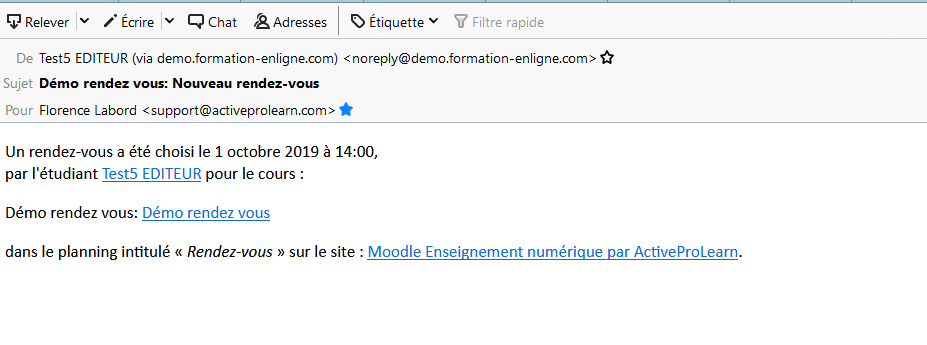
- Notification: When this option is set to yes, teachers and students receive email notifications when appointments are booked or cancelled.
- Interview comments: Choice of the visibility of the comments following interviews. Possible choices: none, visible only to the teacher, visible to the teacher and the student, both types of comments.
Booking form and data provided by the student
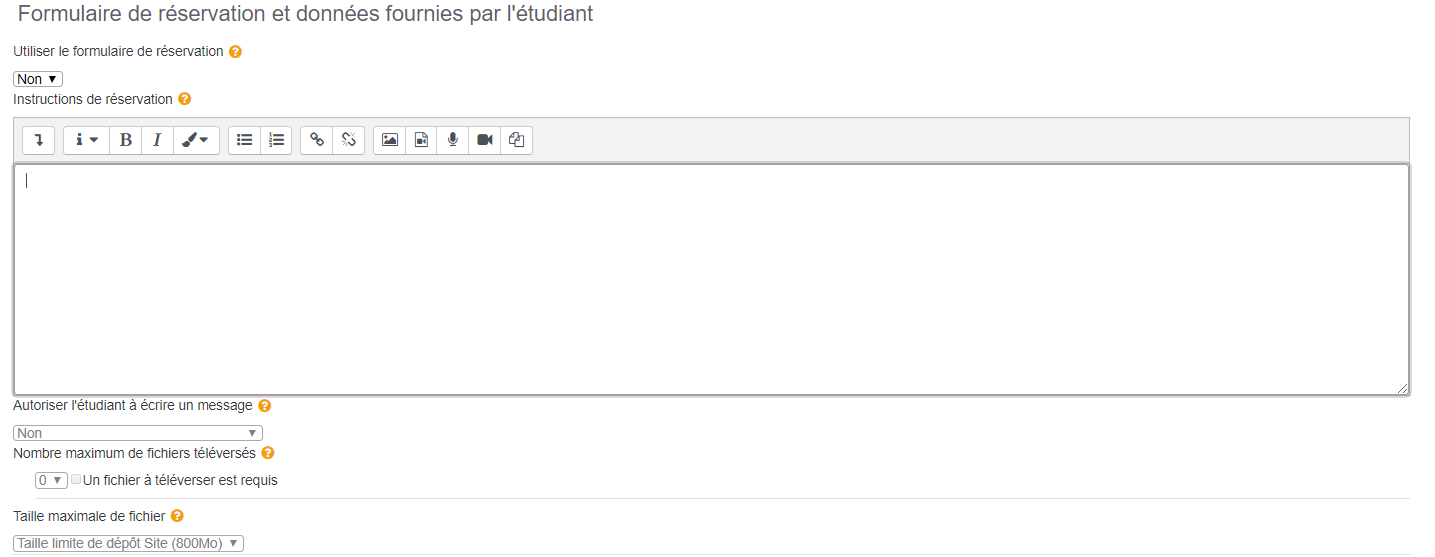
- Use the booking form: Yes/No - No by default. If you enable the form option in the settings, the student will be shown the form when making their booking
- Booking instructions: free text
- Allow the student to write a message: Yes/No - Not operational
- Max number of uploaded files: Number to enter. Tick the “An uploaded file is required” box to make the item mandatory
- Max file size: Size of the file to upload
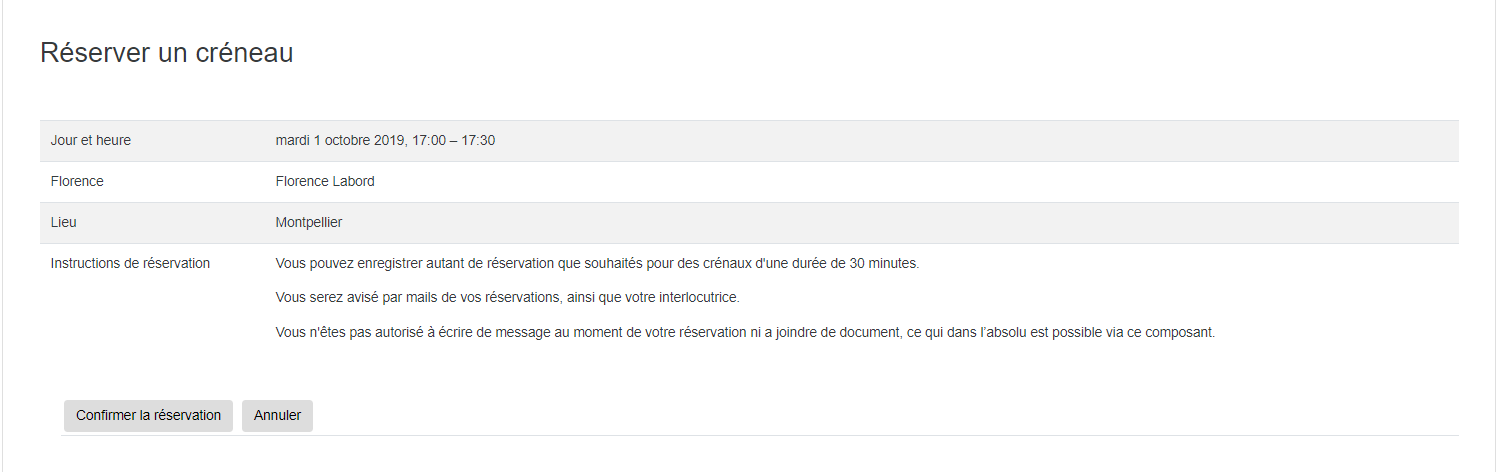
Rendering with the form filled in for the person booking a time slot, without an added message or attachment:
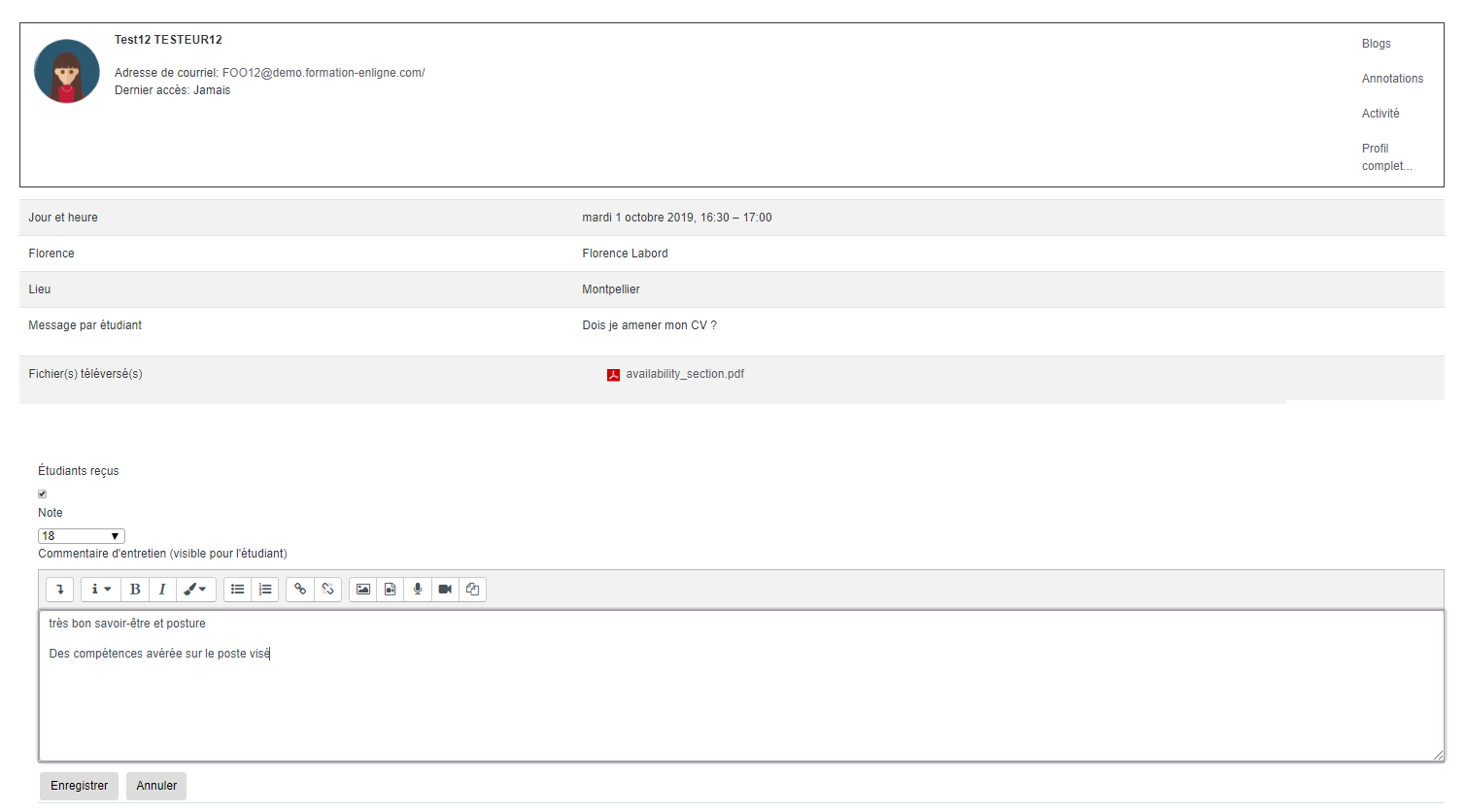
Grading and comment interface following an appointment (with message and attachment additions allowed for students):
Back to the component index - Back to plugins index - Back to catalogue
mod/scheduler/userguide.txt · Dernière modification : (modification externe)