
Table des matières

MPlayer Module User Guide: FlowPlayer
Media Resources
Media Files
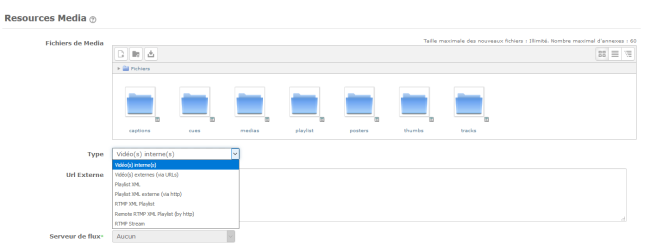
The flowplayer uses and assembles a set of media files and descriptors to serve the different features of the player.
This setting manages a structured container of the “media files” that feed the player functions, either globally or for each clip.
- The “Captions” folder: The caption folder must contain a single text file that gives the title of the different clips of the playlist. It is useful when the playlist is not an explicit playlist, but results from the upload of several video files in the “Medias” section.
- The “Cues” folder: Cues make it possible to trigger activities during the video. This container can receive one file per clip, describing the event points for each clip.
- The “Medias” folder: This is the folder where you can drop the videos you want to see appear in the playlist. Make sure you have selected “internal videos” in the “Type” parameter. Simply feeding numbered directories (0,1,2 etc) creates an implicit playlist in the ordinal order of the directories. Place one video in each numbered folder.
- The “Playlist” folder: In the playlist folder, you can drop an xml file in which all the parameters are gathered. The XML format is described below.
- The “Posters” folder: These are the images you want to see appear when the video is not yet playing.
- The “Thumbs” folder: You will drop in this directory the “thumbnail” images that will be displayed when the playlist display format is “thumbnails”. This directory is not used when the playlist display mode is “dots”.
- The “Tracks” folder: This directory can contain the subtitle files. The format of the subtitle files is described below.
“Type” drop-down list
The way of building the playlist from the different described sources can be chosen using the following parameters:
- Internal videos: The videos will be stored directly on the platform. The video files stored in the “Medias” directory make up the playlist.
- External videos (via URLs): The playlist is built from the list of external video URLs entered in parameter 3 “External Url”. In this case any local files saved in the MediaPlayer are ignored.
- XML Playlist: An “explicit” XML playlist file can be dropped in the “Playlists” folder (see parameter 1). This file gathers most of the parameters such as the thumbnail URL, the video URL and its title.
- External XML playlist: If you cannot upload the playlist file, or have centralised playlist management in the form of Web resources, you can invoke the playlist remotely by giving its URL. Use the “External Url” parameter (Parameter 3) to give the address of this remote playlist. The expected XML format is identical to the format of a local XML playlist.
- Local RTMP XML playlist: Similar to the local playlist, except that RTMP mode (activation of stream readers) is switched on to process the playlist. The playlist URLs are understood as stream identifiers and specific technical implementations are made at the player level to adopt the corresponding protocols.
- External RTMP XML playlist: Similar to the external playlist, makes it possible to fetch the RTMP playlist through a remote URL by filling in parameter 3.
- RTMP Streaming: When you enable this mode, any video dropped in Moodle is transferred to an associated stream reader. This assumes a certain setup of a private streaming server and a link between the file systems of your local server and of the streaming server. In this mode, putting a media in the Moodle MediaPlayer will no longer affect the performance of the Moodle platform when the videos are played.
External URL
This is where one or several URLs can be entered when the setting made previously in the “Type” parameter requires it.
Streaming server
This is where a streaming server can be specified.
Playlist
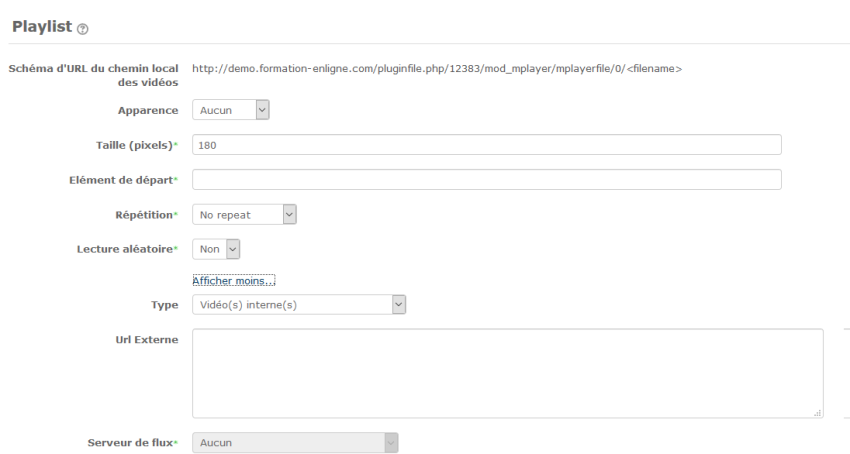
- Url pattern of the local path of the videos: This is the path that makes it possible to find the videos you have dropped.
Example: http://yourmoodle/pluginfile.php/3171/mod_mplayer/mplayerfile/0/video.mp4 where “video.mp4” is the video name
- Appearance: This parameter concerns the appearance the playlist takes. If you choose “Dots”, the videos will be represented by “dots”. There will be as many dots as videos.
- Size: This option makes it possible to configure the image size.
- Start element: Parameter that determines which video the playlist will start with.
- Repeat: Yes/No. To define the repetition of the playlist.
- Random play: Yes/No. To define random play of the playlist.
Subtitle options
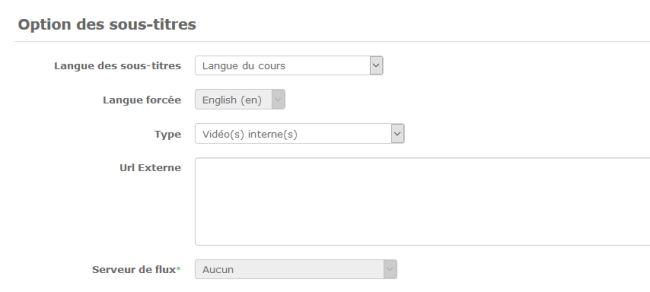
- Subtitle language: The language can be defined according to the course language, the user profile, the teacher.
- Forced language: The language can be defined by default at the site level.
Appearance
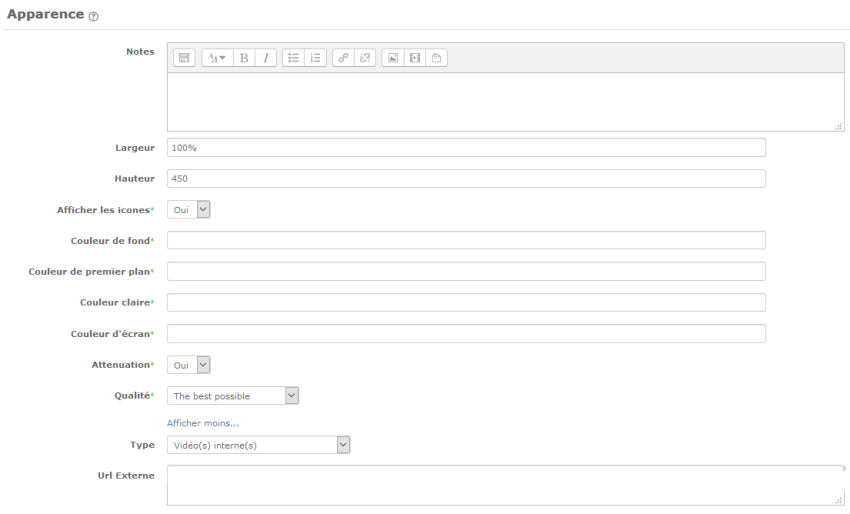
- Notes: The notes are displayed below the player.
- Width: This defines the width of the media player. In other words the size it will occupy on the page. This size is defined as a percentage.
- height: The height of the media player is 570 pixels by default.
Behaviour
- “Autoplay” is a parameter that triggers the video automatically.
- This defines whether or not the media player is displayed in full screen.
- Enable splash mode (flowplayer)
- This option makes it possible to set the default volume. When the learner watches the video, the sound volume will be set according to the percentage you select in this option.
- The video can also be in “mute” mode; in this case select “true”.
Cue Lists
- A “cuelist” is a list of events positioned on the video timeline and able to
trigger actions during video playback. The general format is a text file containing lines with the following information:
video|timestamp1|url|timestamp2;
- video: number of the video in the playlist
- timestamp1: trigger moment (in seconds.tenths)
- url: URL to trigger
- timestamp2: optional:
- 0: the video restarts from the beginning when the window is closed
- timestamp: the window is closed and the video is played after the defined delay
- (empty): no specific action
Common settings
- Standard Moodle settings
Restrict availability
- Standard Moodle settings.
Activity completion
- Standard Moodle completion conditions for an activity
 to do