Table des matières

User Equipment: Administrator user guide
Live demo
 test5 and Test05*! to try on https://demo.formation-enligne.com/my/
Introduction
Moodle is an increasingly rich and complete application. Courses may present tools that an editing teacher does not use, or does not use yet. “User equipment” lets you select the tools (blocks, resources, activities) of your choice, in order to make the course interfaces clearer.
This equipment can be “forced” by the administrator, or left to the user's discretion, who can then, depending on the settings, choose to change their equipment in tooling, according to their appetite for ICT and their digital usage prerequisites.
In addition, the administrator can create tool categories and assign them a colour code, to support teachers with functional landmarks.
Central settings of the component
- Path: Site administration menu/plugins/Local plugins/User equipment
- And at the bottom of the form, link “Plugin category manager”
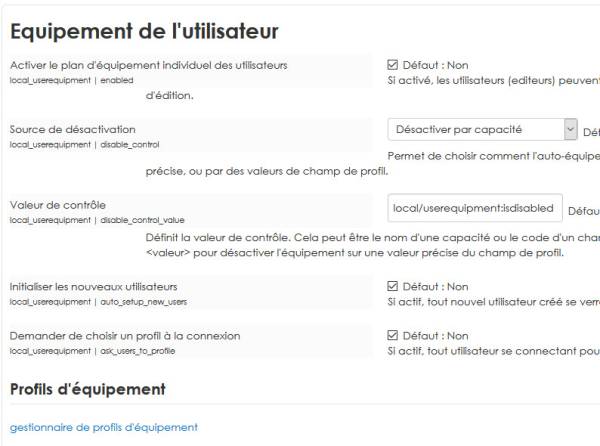
- Enable the individual user equipment plan: If enabled, users (Editing teachers by default) can choose the tools they use, and clean the interfaces of everything they do not need in their editing process.
Tools means blocks, activities, resources, course formats, question types, etc.
- Disabling source: Lets you choose how the self-equipment of certain users is disabled. Disabling can be driven by roles by designating a precise capability, or by profile field values.
- Control value: Defines the control value. It can be the name of a capability or the code of a profile field that must contain a non-empty value. You can also use an expression such as <fieldcode>=<value> to disable equipment on a precise value of the profile field.
The default value is the capability: local/userequipment:isdisabled
- Initialise new users: default value: no - If checked, any newly created user will have the default profile applied and will be notified through the interface at their first login.
- Ask to choose a profile at login: default value: no - If active, any user logging in for the first time who is likely to have an editor role will be offered to choose their profile.
Create/Add/modify/apply an equipment
- Site admin/user/user equipment
- Follow the Equipment profile manager link
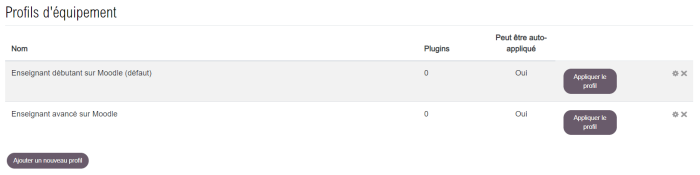
- Click the cogwheel to modify an existing profile, or the “add a new profile” button to create one
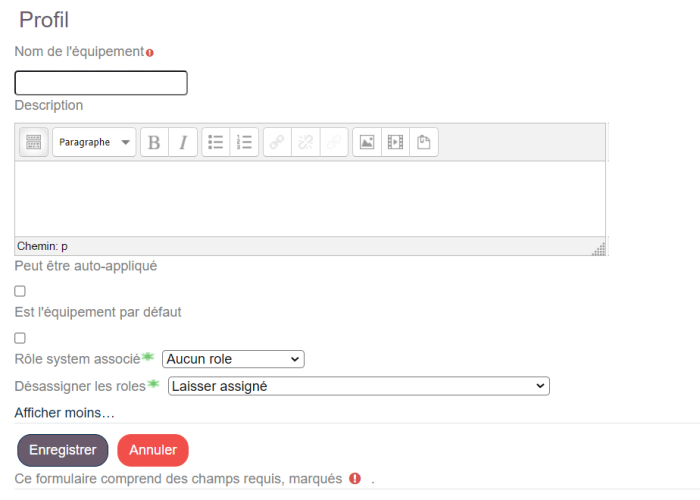
- Equipment name: Free name of your choice
- Description: Free description
- Can be self-applied: Determines whether a profile can choose a defined equipment itself
- Applied by default: Applied by default to the designated system role
- Designated system role: Choose from the dropdown
- Unassign roles: Choice in the dropdown among the following 3 items:
- Leave assigned
- Unassign when a new profile is applied
- Unassign when the equipment marks are removed
- In each tab, choose the course formats, blocks, activities and resources that will make up the equipment
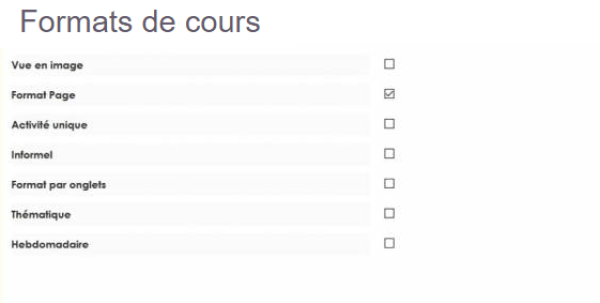
- Course formats: Only the visible course formats will be accessible to the user.
- Blocks, activities, quizzes: Only the chosen items will be accessible to the user.
We are therefore in a negative-logic choice on the interface: what is not checked is inaccessible. Depending on your installation and plugin configuration, the proposals illustrated below may vary.
Tool categories
To give teachers functional landmarks, you can create functional tool categories and assign plugins to them. As a result, Moodle's standard activity chooser will be replaced by a chooser presenting the various possible plugins, “sorted” and filterable by functional families. For a teacher new to Moodle, this is an extremely valuable guidance element to know what each possible activity or resource corresponds to on the pedagogical and functional level.
Creating categories
Path: site admin/user/Plugin category manager
- Click add a category
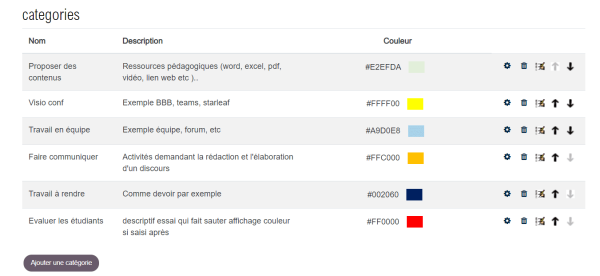
- Enter the name, the description, and the desired colour code using the colour picker
- Save
- Categories can be modified, deleted, reordered.
Assigning tool categories to the available plugins
Path: site admin/user/Plugin category manager
- Click the pencil icon (the third from the left in the illustration above)
Impact on the activity and resource chooser
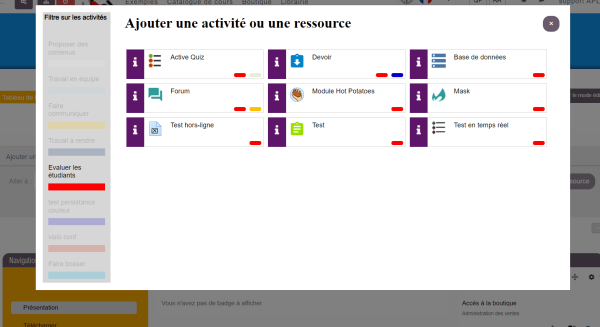
Enabling the chooser in the central setting of the local equipment plugin: site admin/local plugins/user equipment. If enabled, the standard chooser is replaced by the advanced chooser. Teachers see the activities and resources filterable by the categories filled in by the administrator.
Here is an example of a chooser filtered on the created category “Assess students”
Applying an equipment to users
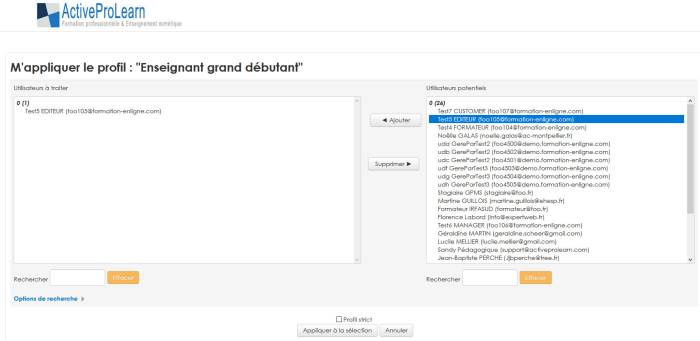
Choose the “Apply profile” link to open the interface for choosing enrolled users to whom to apply the profile.
Then move the users concerned by the profile to the left side.
- Strict profile: If this choice is enabled, the new equipment chosen for a user replaces the old one.
If this choice is not enabled, the new equipment chosen for a user profile accumulates on top of the previous equipment.
Changing one's equipment as a user
This change is an option that may or may not be left to users.
They will need to access the User equipment menu under their login name at the top right of the Moodle interface. See the teacher's guide
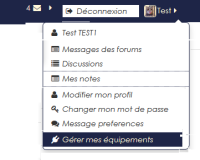
It is worth noting that this choice, left free to editing teachers, must be accompanied by a procedure or a training plan allowing them to progress in their grasp of digital tools through the system, as well as on the equipment, because equipment inadvertently hidden by a user will de facto make the item inaccessible.
Back to the component index - Back to plugins index - Back to catalogue