

Block: Revision Tray: User Guide & Pedagogical Guide
Revision tray settings step by step
Configuring the revision tray
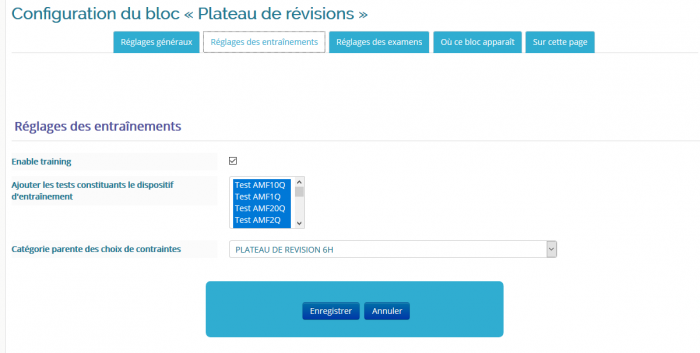
Training settings
Choose the test instances that will be used for the revision tray. In our example, the 6 tests with a step of 1 and the X tests with a step of 10.
The parent category of the constraint choices indicates the parent category of all the tests.
Exam settings
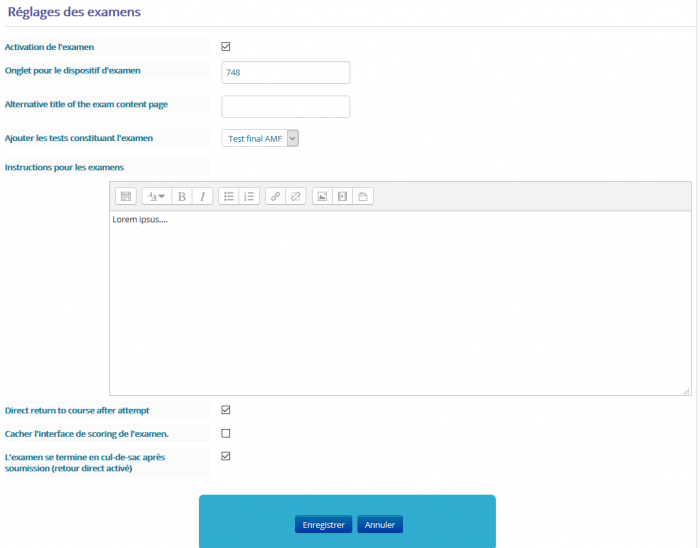
- Exam activation: Making a mock exam available
- Tab for the exam set-up: ID of the tab or page (page course format) where the mock exam test is located
- Add the tests making up the exam
- Enter the instructions for taking this exam
- Direct return to course after attempt
- Hide the exam scoring interface: Whether or not to show the results to students
- The exam ends in a dead end after submission: to be completed (Direct return to course after attempt must be enabled)
Pass threshold settings
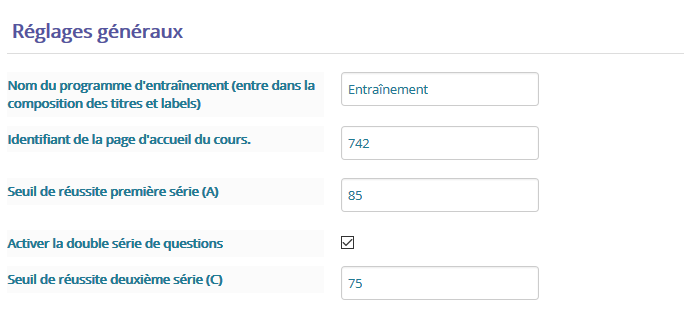
It is in the general settings section or tab that you will indicate the two chosen thresholds, in this example 75% for the first category of tests, 85% for the second. If you only use one threshold, untick the “Enable the double question series” box
Differentiating the two pass thresholds in the question bank
Set the question grades to 1 for threshold 1 and the question grades to 100 for threshold 2
Credits
- Valéry Frémaux (valery@activeprolearn.com) : Development and tests
- Florence Labord (florence@activeprolearn.com) : Documentation and illustrations
Back to the user guide - Back to the component summary - Back to the catalog - Back to the plugin index