
Table des matières

NetYpareo authentication: User guide
Activating the component
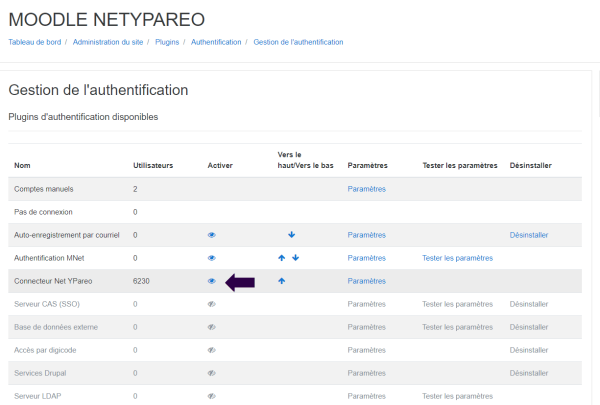
Activate the component. Path: Site administration > Plugins > Authentication/Manage authentication > Net YPareo connector
Component settings: REST authentication
Path: Site administration/Plugins/Authentication/NetYpareo connector
- Web services access token: Enter the token provided by the vendor
Obsolete - kept as a record of prior use: SOAP authentication
Protocol type not removed from the plugin interface but obsolete since the vendor switched to the REST protocol
- “Token authentication” web service - Single instance
- “Management” web service - Single instance
- “User” web service - Single instance
- “Document management” web service
the settings had to be filled in as follows:
- Path to your NetYPareo™: https://example/netypareo/
- NetYPareo™ client ID: Example 920807
- NetYPareo™ WS identifier: web service access identifier
- NetYPareo™ WS password: Web Service access password
Synchronisation configuration
- Site cohort sync: yes / no - No by default - A site generally corresponds to a school.
- Site cohort deletion: Logical / Physical / do nothing - Logical by default - What happens to the site cohort when the site disappears from the source. Logical deletion: disables (hides) the cohort in Moodle - Physical destroys the cohort.
- Moodle user sync field: User name (NetYpareo IDnumber or username) or, as chosen, identification number (UserID)
- Override authentication: If enabled, NetYpareo authentication will replace any previous authentication if the account already exists with the same identity.
- User matching trigger threshold: We try to find a Moodle account that would have existed before the NetYpareo authentication.
- Default: Name, first name, email
- Learner sync: Check for Yes - Default: No
- Trainer sync: Check for Yes - Default: No
- Tutor sync: Here tutor means company tutor on the NetYpareo side - Check for Yes - Default: No
- * Email address protection: If enabled, users' email addresses are protected during user synchronisation. The address will only be modified if it is empty in Moodle, or when the user is created for the first time.
- User deletion: What happens to the user when they disappear from the source. Default: do nothing - Logical deletion (suspension, deactivation) - Complete deletion.
- Group sync: Check for Yes - Default: No
- Group vintages (PRO option): Default: empty field - Choose the vintage of the groups to import. Example: 2025/2026.
- Group vintages, previous session (PRO option): Choose the vintage of the groups to import (previous year, example 2024/2025).
- Continuing education group sync: Check for Yes - Default: No - NetYpareo separates FL (initial training) and FC (continuing education) groups
- PRO option extend to the previous year's groups (group sync). If enabled, the group sync will cover the current vintage AND the previous year, to account for the academic session offset
- Last extracted period: Enter the start of the last extracted period for continuing education groups. The synchronisation will process from this date over a duration equal to the current anticipation period. (See next item)
- Anticipation period (FC): Default 30. Number of days of anticipation for loading continuing education groups into Moodle.
- FC group auto tracking: Check for Yes - Default: No. If active, the last synchronisation date will be automatically shifted to synchronise the following period.
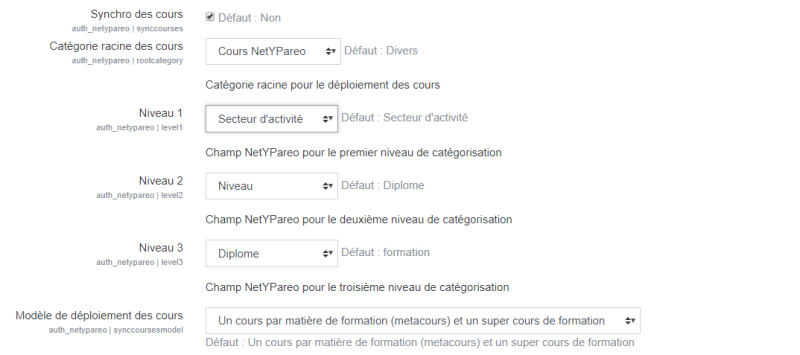
- Course sync: Check for Yes - Default: No
- Course root category: The Moodle category hosting the courses - Miscellaneous by default
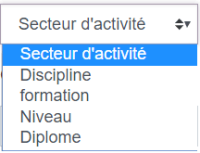
- Level 1: Choose the desired level as in the illustration below
- Level 2: Choose the desired level as in the illustration below
- Level 3: Choose the desired level as in the illustration below
- Course deployment model: A single course per training / One course per training subject / One course per training subject (metacourse) and a training super course - Default: One course per training subject (metacourse) and a training super course.
- Main course template: Default: empty. Shortname of the course used as a template for the main courses.
- Cache data deletion: Logical deletion / Physical deletion / Do nothing - Default: Logical deletion. This choice determines what happens to the cache data when the data disappears from the NetYpareo source.
Sending documents
Experimental: not tested
- Send certificates
- Send training session reports
- Send learning time tracking reports
- Download directory
Problems related to user matching
The user account matching parameter selects one of the available detection heuristics, associated with a matching score. The more fields are checked, the higher the score, ensuring good discrimination, for example with namesakes.
If you see duplicates appear in the user list, the chosen heuristic is probably too strong, and too precise a discrimination is made: the slightest change in one of the identity components led to the creation of a new account.
Using a strong heuristic assumes that the upstream directory is strictly administered with careful de-duplication. If this is not the case, prefer a weak heuristic, for example based only on the user number and a name check.
If the heuristic is on the contrary set too weak, you risk merging two identities that should have separate accounts, overwriting some parts of the user profile.
Credits
- Valéry Frémaux (valery@activeprolearn.com) Development
- Florence Labord (florence@activeprolearn.com) Documentation
Back to the component index - Back to plugins index - Back to catalogue