Table des matières

Lucene global search engine: User guide

Adding the search block
Add a search block on the page of your choice
Introduction
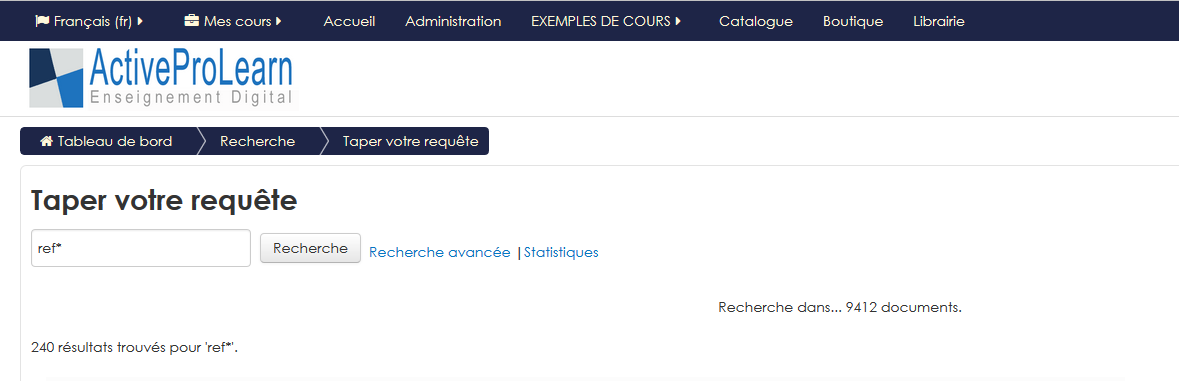
Search results from the engine are displayed on a full-screen page. The results displayed depend on the indexing choices made by the administrator in the central configuration.
For example, one could choose to index only the resources of a certain type, or only those of the shared library.
In this example, we find users and resources:
Performing a simple search
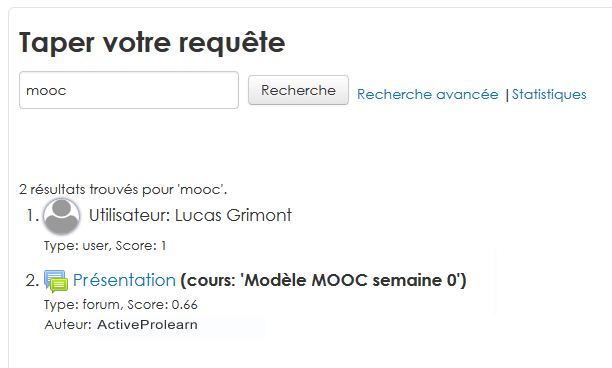
To perform a full-text search, enter the searched term in the input area and click the “Search” button to get the number of items found and their list below the engine.
Advanced syntax in simple searches
The Lucene engine offers a number of syntaxes to refine searches or the priorities of result output.
General documentation on these syntaxes is available (in English) here: https://lucene.apache.org/core/2_9_4/queryparsersyntax.html
Performing an advanced search
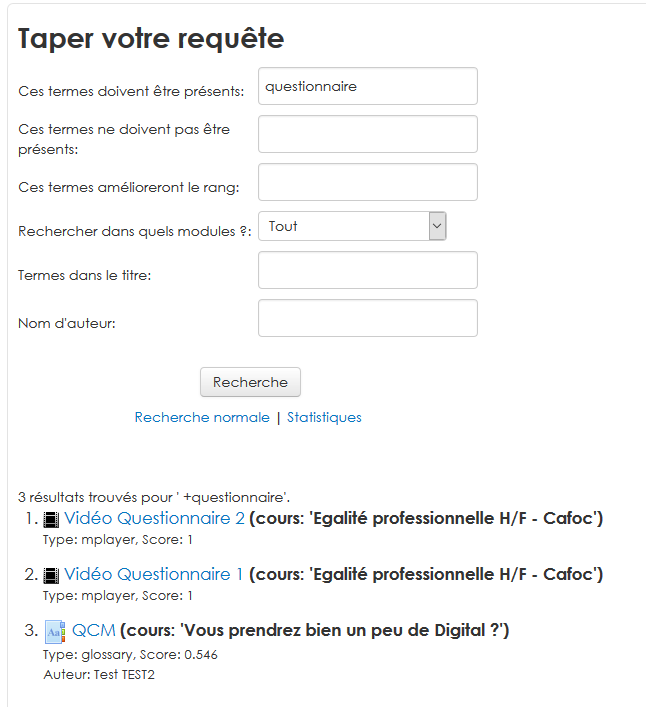
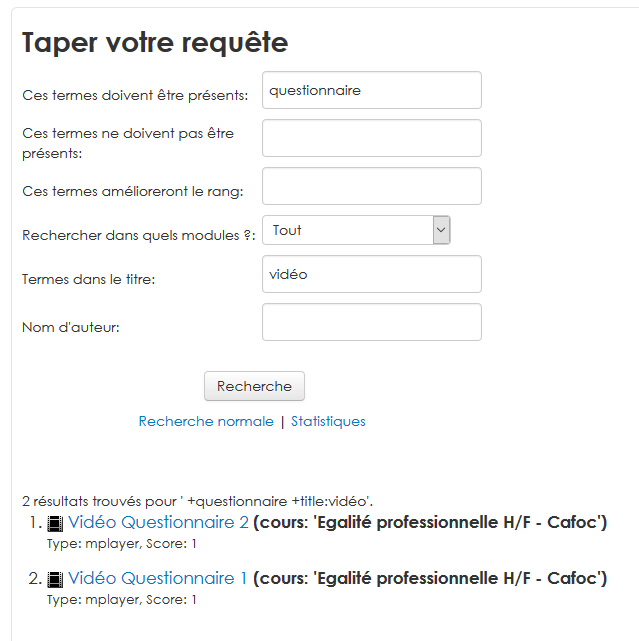
To perform an advanced search, follow the “Advanced search” link, complete the advanced search form, and click the “Search” button to get the number of items found and their list below the engine.
Note: a link is present on the interface to return to the simple search.
 Warning: a space will only be taken into account if it is included in an explicit string, as in Test_1 for example. If you search for the occurrence Test and exclude Test 1 from your search, you will get zero results.
Advanced search example:
 |  |
Local plugin configuration (administration)
- Manage global search
Site admin/search/manage global search
- Select a search engine: This first menu indicates the engine used (Solr)
- Enable search areas: Target areas of the search via checkboxes (assignments, folders, files, courses, urls, etc.)
- Set up the search engine:
- Index data: Yes/No:
- Enable global search: If this setting is enabled, data is indexed and synchronised by means of a scheduled task (CRON)
For this last point, the function must first be enabled in the site's advanced features: Your moodle/admin/settings.php?section=optionalsubsystems
- Global search engine
Global search engine
Local plugins/search/manage global search
- UTF8 transcoding of local_search results: by default no conversion
- Software locking local_search: by default no
- Switch index file locking to “software” mode: Must be used when continuous indexing of resources is done by several different clusters on a shared NFS mount. Software locking is less rigorous than physical locking, but is the only way to work on a clustered system.
- Indexing of physical files local_search: by default no. If active, the physical files attached to Moodle contents or resources are indexed in full text.
- File types local_search: List of file types (extensions) supported by the full-text conversions. By default PDF,TXT,HTML,PPT,XML,DOC,HTM
- Define paths from the Moodle root local_search: by default yes
- Analysis body limit local_search: by default the value is 0. Limits the size of the text body analysed for indexing. This can improve the indexer's performance, but lose search capabilities.
PDF support
- PDF support: System path to your pdftotext (xpdf) library. By default lib/xpdf/linux/bin64/pdftotext -enc UTF-8 -eol unix -q
Microsoft Word documents support
- Word documents support: System path to the doctotext converter for Word. By default lib/antiword/linux/usr/bin/antiword
- Environment variable for MSWord conversion: By default ANTIWORDHOME=/var/www/formation-enligne31.com/local/search/lib/antiword/linux/usr/share/antiword
Discovery of indexable objects
- Show the list of indexed objects:

Search on core elements
- Users local_search: by default yes, to search by user
Enabling module indexing
- Uncheck the activity modules not to be indexed. Example: Assignment 2.2 (disabled) local_search: unchecked
Global activation
- Global activation local_search: Yes/No, by default no. If disabled, no indexing will be done and all the interfaces related to global search are hidden. It must therefore be checked to use indexing.
Credits
- Valéry Frémaux (valery@activeprolearn.com) Development and testing
- Florence Labord (florence@activeprolearn.com) Functional documentation and testing
Back to the component index - Back to plugins index - Back to catalogue - Index by functional subsets