Table des matières

Enhanced My Moodle: Course Area Settings: Examples
Course area setting examples
Example 1:
A course zone is set to 1, and the course area points to the course category named “Tutorials”. A course in which I participate as a teacher belongs to this category. Then the course concerned will not be displayed in the “I teach” widget, but in the specific course area “Tutorials”.
Example 2:
The “Specific course areas” course zone is set to 2. The first course area points to the course category “2023/2024”. A course in which I participate as a teacher belongs to this category. The second course area points to a course category “Archives” in which I am enrolled as a learner in the courses of this category.
Then the course of the “2023/2024” category will not be displayed in the “I teach” widget, but in a first course area “2023/2024”. Then the courses of the “Archives” category will not be displayed in the “I learn” widget, but in a second course area “Archives”.
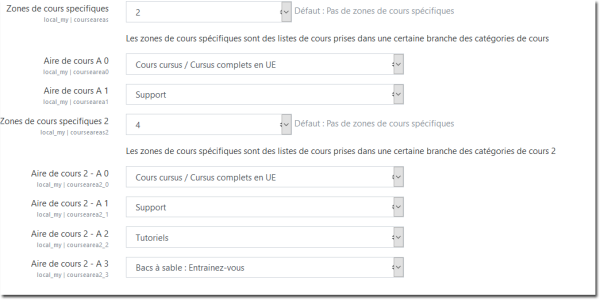
* Specific course zones
Defines the number of specific course areas to display. The number of specific course areas can vary from 0 to 9. The widget displays these course areas on two columns, then continues on the next line.
* Specific course area
You choose a course category that will belong to the course zone.
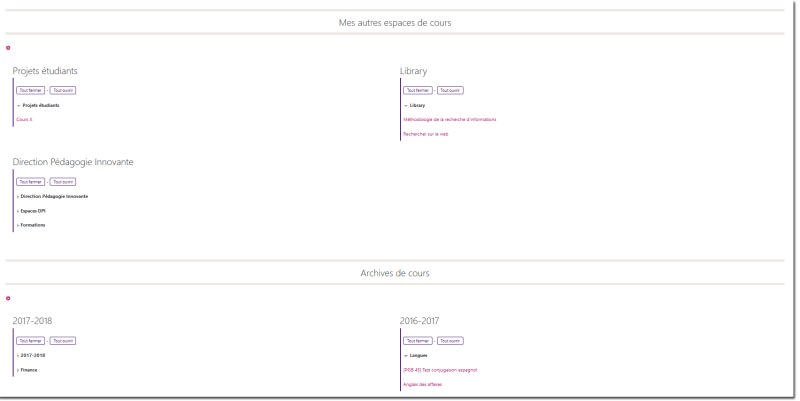
Below is a rendering example with two course zones.
The first course zone points to 3 course areas that display course categories and their subcategories (Student projects, Library and Innovative Pedagogy Department)
The second course zone points to two course areas that display 2 course categories and their subcategories. (2017/2018 and 2016/2017) The two specific course zones and their course areas are separated and highlighted by headings based on another widget (My other course spaces and Course archives).
Credits
- Valéry Frémaux (/Base Intel Teach Advanced Online / Pairform@nce MEN)
- Florence Labord - Functional tests and documentation
Back to the technical guide: Course area settings - Back to the plugins index - Back to the catalogue