Table des matières

Quiz Behaviour Block: User Guide
Presentation
The quiz behaviour block incidentally activates changes in quiz behaviour through a block instance added to the course where these changes must occur. In the absence of a block instance and of the settings activating the changes, the standard quiz behaviour is preserved.
This block can only be placed in courses and only as a single instance. One block instance lets you configure all the quiz instances used in the course. This block is compatible with all Moodle course formats.
Setting up a modification instance
- Enable the course's edit mode
- Add a Quiz behaviour block through the block-adding menu.
This block has no interface of its own. It is the block's configuration form that gives access to the quiz settings.

Configuring the quiz modifications

Alternative attempt interface
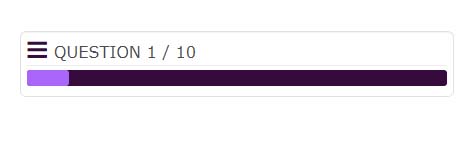
This option changes the rendering of quiz questions by simplifying the screen. Question navigation is removed in favour of a progress indicator. (The colours are easily modified by CSS override; in this example a coloured adaptation of a customer's branding.)
Always restart a new attempt
In standard behaviour, Moodle will always try to recover the last open attempt by the user that was not properly closed. If this option is enabled, any new access to the quiz will force the start of a fresh attempt.
Basic content protection
If this option is enabled, a basic protection script disables content selection and the right mouse click in the course where the block is installed and in the quizzes of that course. This protection is very relative because it is local and cannot trap a user who has enabled debugging tools in a previous use. It is more a nuisance than a real protection.
Trap outgoing links
If this option is enabled, then any link leaving the quiz will be subject to a notification stating that the user is leaving their attempt. It is generally combined with the “always restart attempts” option.
Force the answer
If this option is enabled, then the learner will be required to choose at least one answer before being able to continue the test. This option is currently only guaranteed on Multiple Choice type questions.
No way back
If this option is enabled, the buttons allowing going back in a quiz are hidden, allowing only a sequential forward progression through the quiz.
Hide the test information in the summary
If this option is enabled, the attempt summary page is simplified.
Direct return
If this option is enabled, then the final saving of the attempt is directly rerouted to the course after review of the answers. The intermediate attempt report screen is skipped.
Dead end
If this option is enabled, then the last quiz saving action is diverted to a dead-end screen whose message can be customised, but generally without giving a result or a review of the quiz.
Hide question flagging
Removes from the interface any notion of question flagging.
Back to the component index - Back to the component summary - Back to the summary