
local:shop:setup:partners
Table des matières

Local Shop: Back Office User Guide
Back Office: Setting up and Running a Commercial Offer
Access via the Sales Administration block
Follow the “Sales administration” link in the Commercial services block (Shop Access plugin)

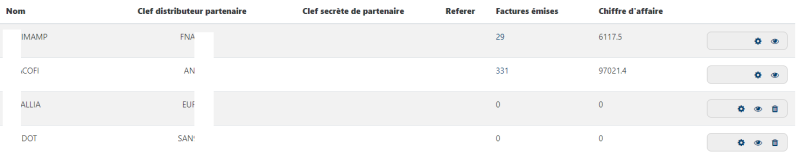
Then follow the “Manage partners” link on the Commercial service page.
It is through this menu that you will manage the creation of the partners that will then be available in connection with the different products.
Introduction
The partner is understood as a “business referrer”. As such, it can be:
- Internal (a salesperson for example), in which case it will have a Moodle account
- External, in which case it can come from a partner site, and its referer will then be added, see below
Adding a partner
Add a partner by following the “Add a new partner” link, then enter the following attributes:
- Partner name: Free text
- Key: free text, determines the partner identity
- Referer: External arrival URL
- User account: Moodle username
- Active partnership: Tick to enable/disable the created partnership
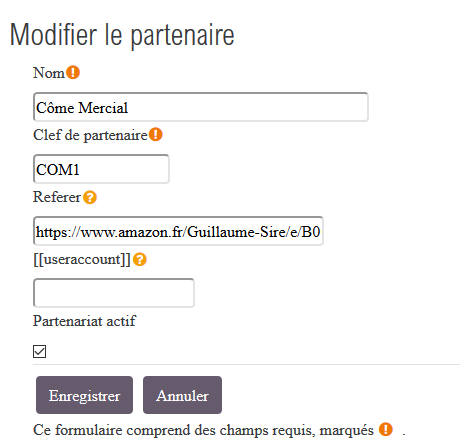
Rendering: Example
local/shop/setup/partners.txt · Dernière modification : de 127.0.0.1