
local:shop:setup:discounts
Table des matières

Local Shop: Back Office User Guide
Back Office: Setting up and Running a Commercial Offer
Access via the Sales Administration block
Follow the “Sales administration” link in the Commercial services block (Shop Access plugin)

Then follow the “manage discounts” link on the Commercial service page.
It is through this menu that you will manage the creation of the discounts that will then be available for the different products.
Discount principle
Adding a discount
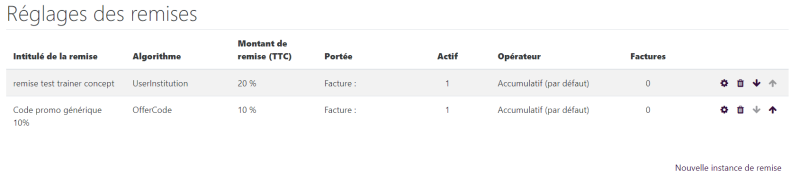
Add a discount zone by following the “New discount instance” link, then enter the following attributes:
- Add a discount: active
- Discount label: free text
- Argument: Instructions of the discounts and promotions block - Example: Do you have a promo code? Enter it below
- Rate: discount rate in % - example: 20 for 20%
- Algorithm: Choose the type of discount:
- Unconditional: The discount is applied to all orders.
- By institution: The discount is applied to buyer profiles that match the institution
- algorithm data – institution.
- Existing customers: The discount is applied to logged-in customers whose customer account is older than
- algorithm data – days.
- Number of purchases: The discount is applied to logged-in customers whose customer account has made at least
- algorithm data – number of invoices.
- Order amount: The discount is applied if the order amount reaches an amount of X
- algorithm data – number.
- User capability: The discount is applied if the identified user has a certain capability in the context (system by default), therefore for LOGGED-IN users only.
- algorithm data - json structure such as {“capability”: “capname>”[, “contextid”:“”]}.
Specific algorithm data, examples
- SFC2020 for a promo code
- trainer concept for an organisation name
- “capability”: “local/shop”:“seconddiscountagreed” for a capability (here “silver” customer)
- Discount scope: The whole order or part of the catalogue (in this case choose the relevant courses in the list)
- Operator:
- Cumulative: (default): Accumulates the discount with the previous discounts in the list
- Replace and stop: the discount replaces the previous calculation of the stack. All previous discounts are cancelled. The evaluation of the discount list is stopped.
- Stop if applicable: The discount is applied in cumulative mode, then the evaluation of the list is stopped if the discount was applicable.
- Stop if not applicable: The discount is applied in cumulative mode, then the evaluation of the list is stopped if the discount was NOT applicable.
Rendering: Example on the "organisation" profile field
the institution field is filled in the user profile and the discount indicates the same label in the field: “Specific algorithm data”
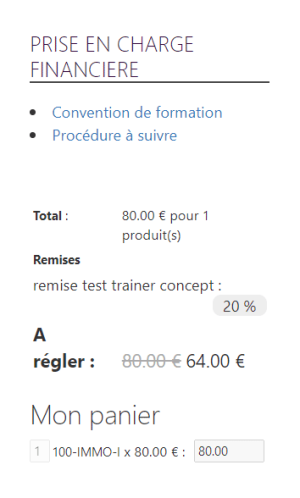
Rendering: Example on promo code
Cart view and effect/invoice

The different discounts (structure doc to be turned into concrete examples)
local/shop/setup/discounts.txt · Dernière modification : de 127.0.0.1