
Ceci est une ancienne révision du document !
Table des matières

User guide
AuditQuiz Results block
Prerequisites: Properly prepare your question bank to get significant results !
Rule 1 :
The questions must be accessible from the quizzes used for the audit. Therefore, they must be located in a adequate shared context, that goes from:
- The quiz instance context
- The course sharing context
- Any of the category branch context that contains the course.
- The site context (although sharing in site context should be done with precaution)
Rule 2 :
Questions must be forged into a dual question category organisation. This is because the grapher and its calculation module use two successive levels of organization to aggregate the scores and display them on the screen. The questions must adhere to this structure and:
- All be located at the same subcategory level,
- Be located in at least one subcategory of one or more main themes.
Example of organization:
- Sharing category: Course questions
- Subject category: French
- Subcategory: Spelling
- Q1
- Q2
- Q3
- Subcategory: Grammar
- Q4
- Q5
- Q6
- Subject category: History
- Subcategory: Contemporary History
- Q7
- Q8
- Q9
- Subcategory : Middle age
- Q10
- Q11
- Q12
Each subcategory is scored individually, it will be necessary to create enough questions in each of the subcategories so that the test can give discriminating and analyzable results (A single question in a subcategory leads to proposing an alternative of 0 or 100 in that subcategory, which is not very significant for measure knowledge “level”).
Building and Selecting Tests Associated with AuditQuiz
An Auditquiz instance can use one or more quizzes. If you think the question set as a whole might lead to too long attempt time, split it into several individual quizzes to be completed in multiple sessions. The AuditQuiz block will sum all the scores produced by the tests you have linked to it.
You can insert questions from the same category into different quizzes if you wish. The calculation system performs a general consolidation that does not take into account the quiz instance in which the question is located or played, but rather the category it belongs to.
Add audit quiz result block
Once your tests are ready, add the audit quiz result block to the course and select the quizzes to associate with it, in its settings.
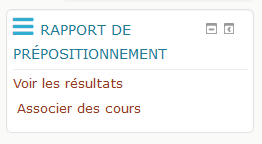
Linking Rehab Courses (Pro only)
In the block's footer, a link let authorized users access the administrétion of mapping between question categories and rehab courses.

In the association screen, question categories are presented first by category (1) and then by subcategory (2). A list of associated remedial courses is provided (3) per category. Students will not be able to access if the self-enrollment method is not enabled for the relevant courses. Those courses are shown dimmed.
You can quickly navigate to the enrollment method management screen (4) or remove this association (5).
Finally, you can select courses to associate (6) with this category using the course selector. And go back to course (7).
Note that remedial courses are simply “offered” to learners below their pre-placement report. Learners are not required to enroll in these courses, but they can do so voluntarily by clicking on the link for the suggested course. Therefore, it is the teacher's responsibility to verify that the enrollment method is present and active for the target course.
Other block settings

Students can see their results: If this option is disabled, the block is hidden from students, and they cannot view their placement results.
Publication: Determines how the graph is published, either within the block or on a separate page. Choose “On a separate page” if you want the details of the passing thresholds displayed.
Test Type: If other test modules that use the retries engine are installed, this setting allows you to choose the type of test to search for and associate with the placement block.
Graph Dimensions: Allows you to adjust the physical dimensions of the graph relative to the layout.
Enable Course recommendations: This setting enables or disables the remedial course recommendation mechanism.
Passing Threshold 1: This threshold (from 0 to 100) defines the successful categories. Categories that did not reach this score will offer the option to enroll in remedial courses if they exist, are accessible, and the offer option is enabled.
Passing Threshold 2: If the second passing threshold is used, then the question categories are divided into 3 groups:
- Those that are known
- Those whose score could be improved
- Those that need work from student
The last two categories lead to enrollment recommendations if they are defined.
Inscription proposals even if the category is passed: Normally, no remediation is offered for categories that have reached the highest score threshold. With this option, enrollments are offered regardless of the result.